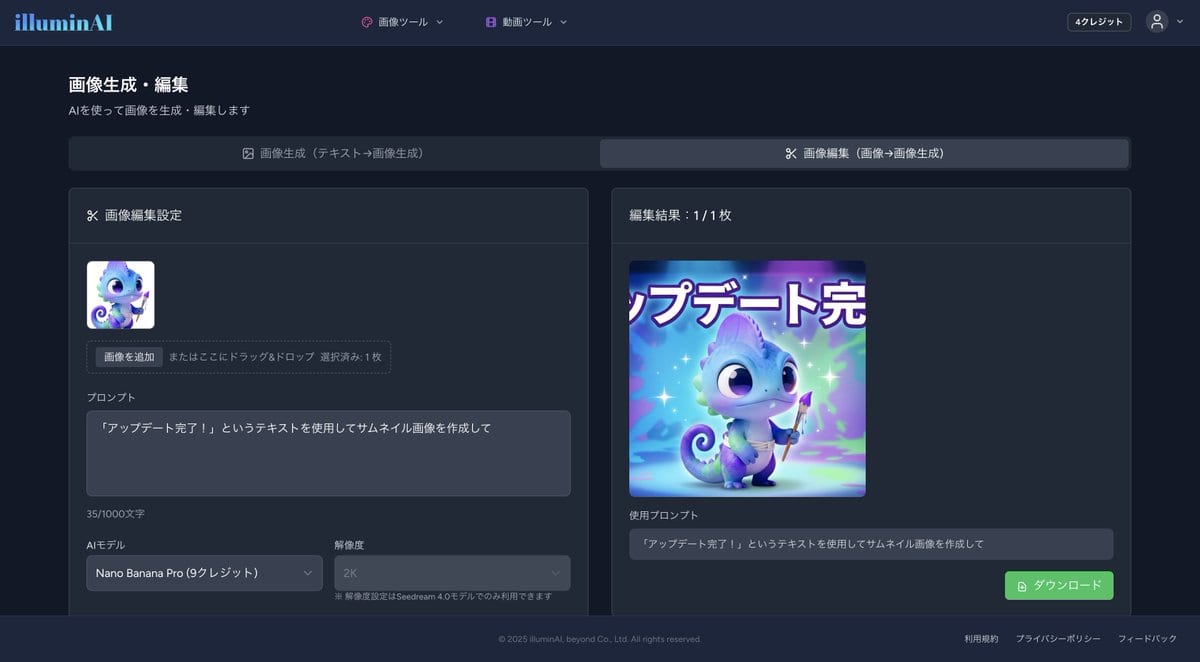
Creating a Thumbnail Image with Text Overlay
A simple prompt used with Nano Banana Pro's 'Image Editing' feature to create a thumbnail image based on a selected source image, adding a specific text overlay.
A simple prompt used with Nano Banana Pro's 'Image Editing' feature to create a thumbnail image based on a selected source image, adding a specific text overlay.

A highly specific prompt for Gemini Nano Banana Pro, designed for Adobe Firefly, to generate an ultra-photorealistic image of a photo-booth print strip. The prompt strictly requires 100% facial consistency across all four frames, based on an uploaded refe

This prompt template is designed for Nano Banana Pro to generate images in the style of a documentary TV program, complete with split-screen scenes (2x2 grid), superimposed text (telop), and picture-in-picture (wipe). Users upload a person's photo and the

A prompt for generating an ultra-realistic cinematic image where a smartphone screen is transformed into a miniature, professional tennis court with tiny players in action. The prompt details camera angles, lighting (dramatic stadium style), and hyper-rea

A structured image generation prompt focused on creating a hyper-realistic portrait of a stylish person (with face preservation) interacting with 3D photorealistic versions of Peter and Brian Griffin from Family Guy. The subject wears a knitted sweater (F

A hyper-realistic photograph of a woman reclining on a horizontally curved palm trunk over a turquoise lagoon at sunset.
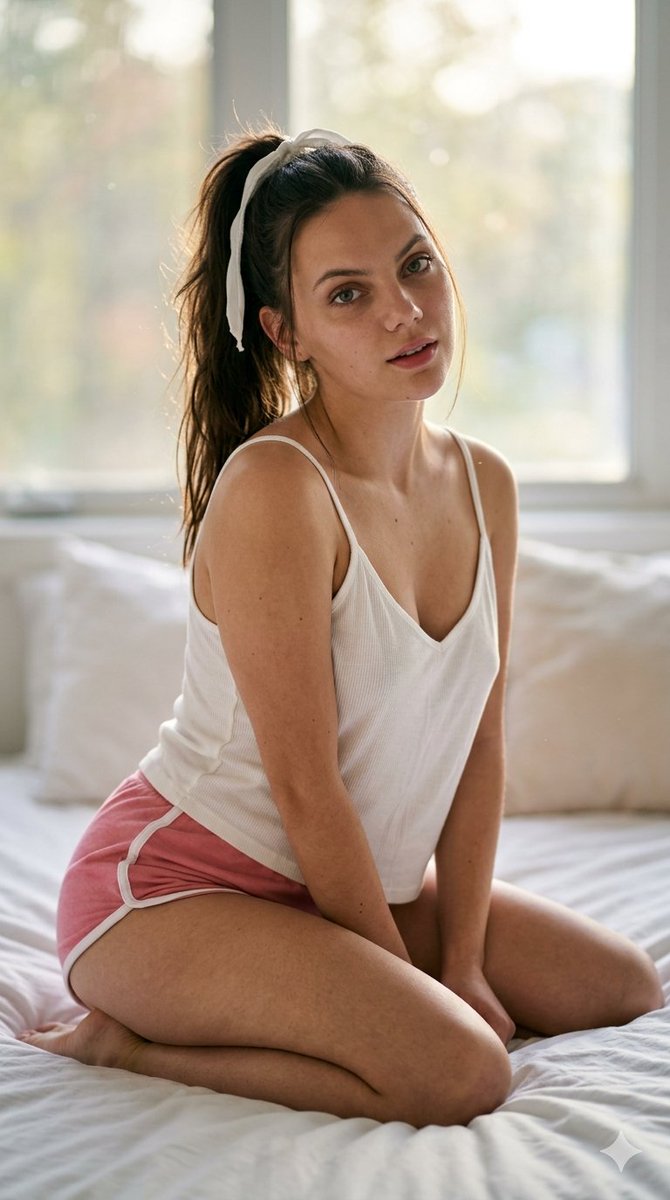
A detailed cinematic prompt for a relaxed morning portrait on a bed, featuring soft lighting and high-quality photography settings.
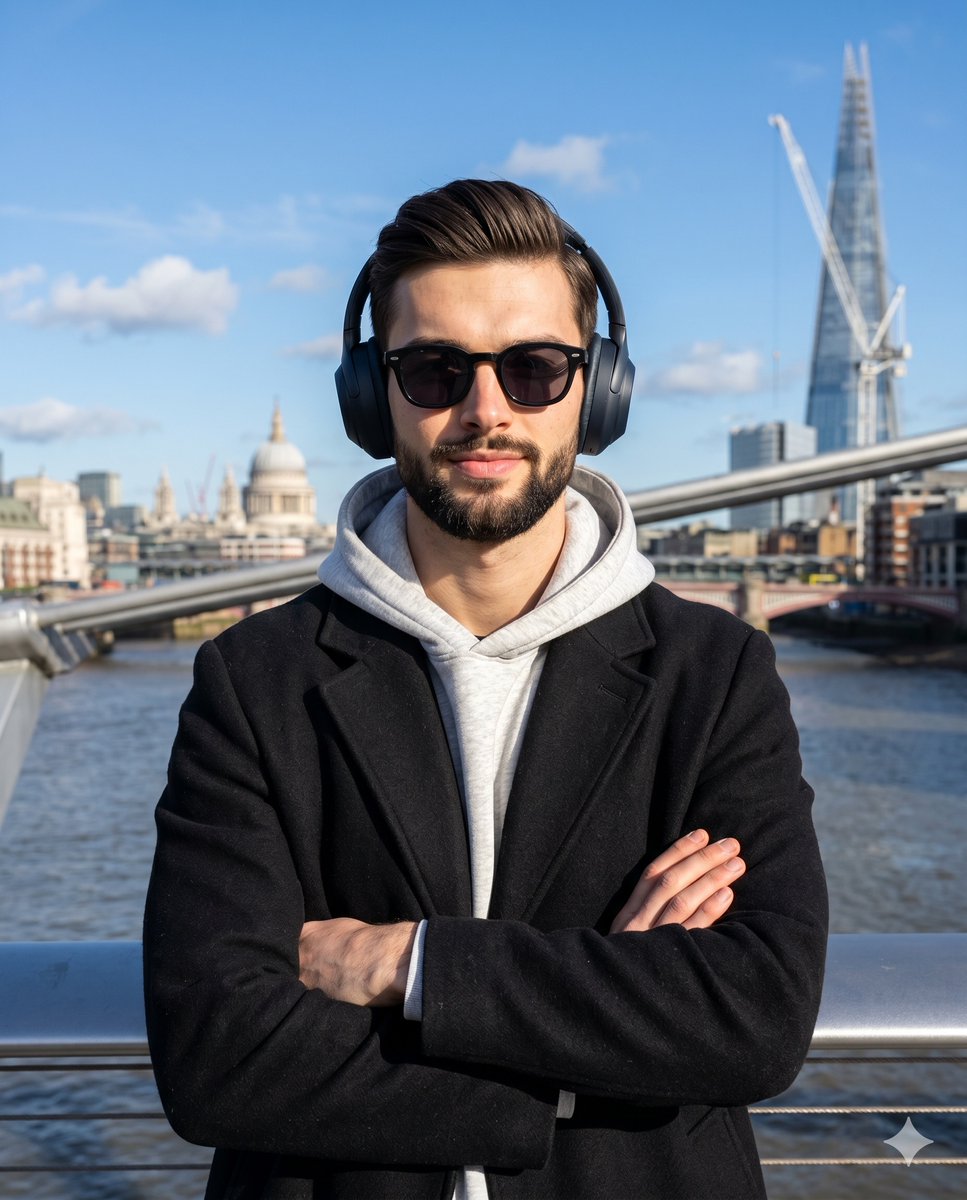
A high-contrast, realistic portrait of a man in London, featuring The Shard in the background with crisp natural lighting.
An AI text to image generator turns a written prompt into a finished picture you can download—no Photoshop skills, no stock subscriptions, no waiting on a designer. Describe the subject, style, lighting, and composition; the text to image engine renders pixels that match your words. ToolFK ships multiple models including Flux, CodeView3, and FLUX.2 Dev so you can pick speed, detail, or experimental looks depending on the job.
This free AI image generator runs in the browser: type a prompt, choose a model and aspect ratio, and save PNG or JPG in seconds. Flux models excel at photoreal scenes and clean typography; CodeView3 suits stylized illustrations; FLUX.2 Dev offers a balance for iterative creative work. When you need motion next, send the result to our image to video tool or build a full scene with the text to video generator. Stuck on wording? Nano Prompts lists tested templates you can paste and tweak.
Yes. Guests have a daily generation limit; registered users receive more quota, and VIP plans add extra runs. Check the counter on the page before you start.
Use Flux for photoreal output and sharp detail. CodeView3 works well for stylized or illustrative looks. FLUX.2 Dev is a solid default when you want fast iterations without sacrificing too much quality.
Name the subject, art style, camera or lens feel, lighting, and background. Separate ideas with commas or short sentences. Avoid contradictory instructions in one prompt.
You are responsible for rights in your prompt and any trademarks or likenesses you describe. Review ToolFK terms and local laws before using images in paid campaigns.
Most jobs download as PNG or JPG depending on the option you pick. Resolution follows the aspect ratio and model tier selected on the page.
Generate a still here, then open the image to video tool with the same file to add motion. For scenes built purely from words, use text to video instead.
Last updated: July 1, 2026