What Is an AI Text to Image Generator?
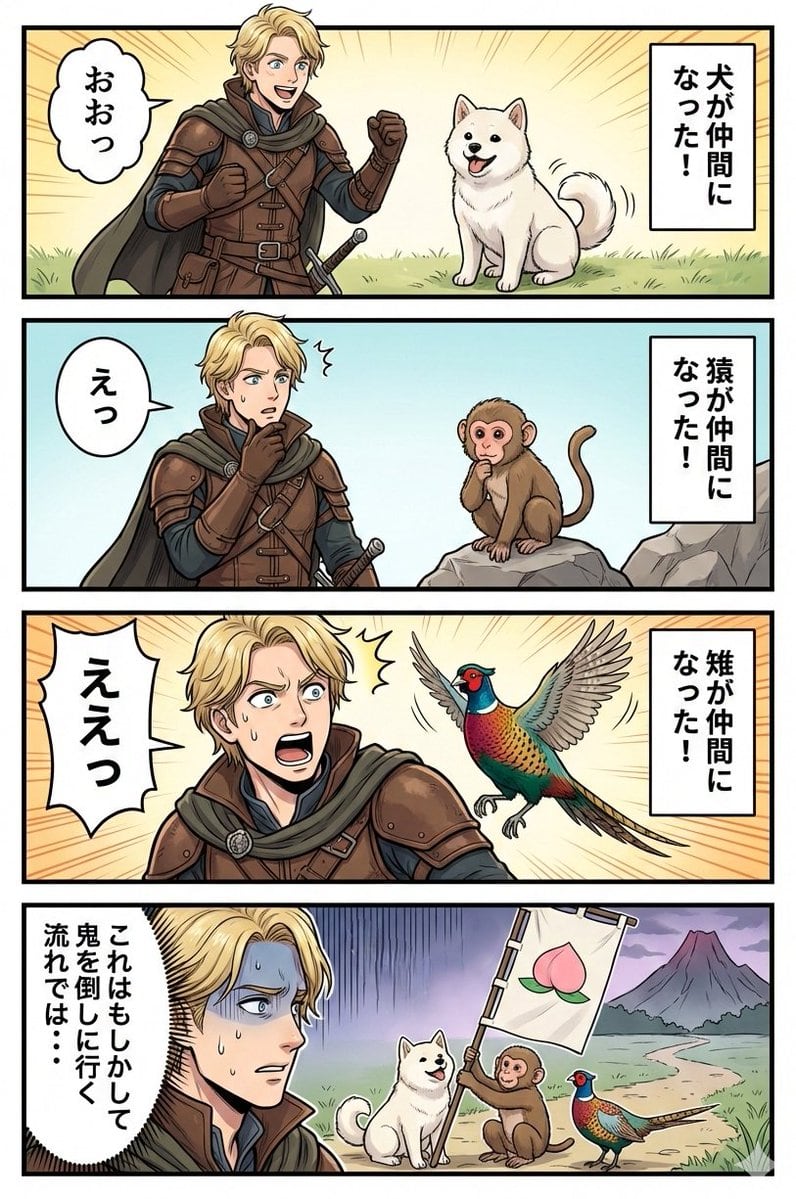
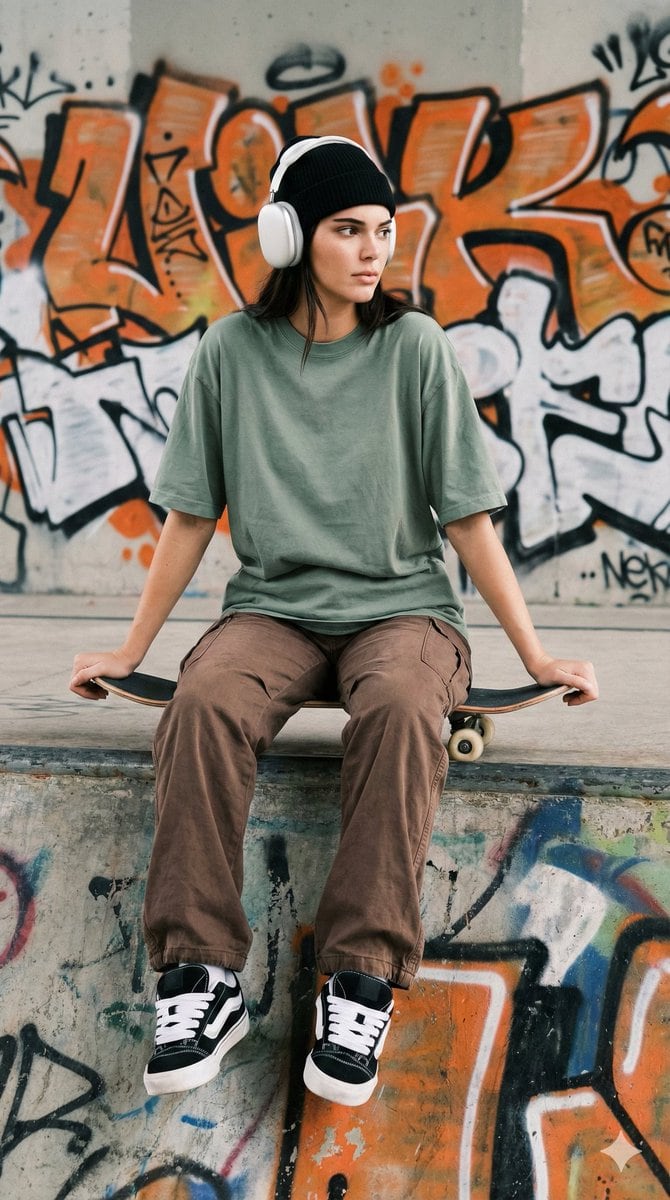
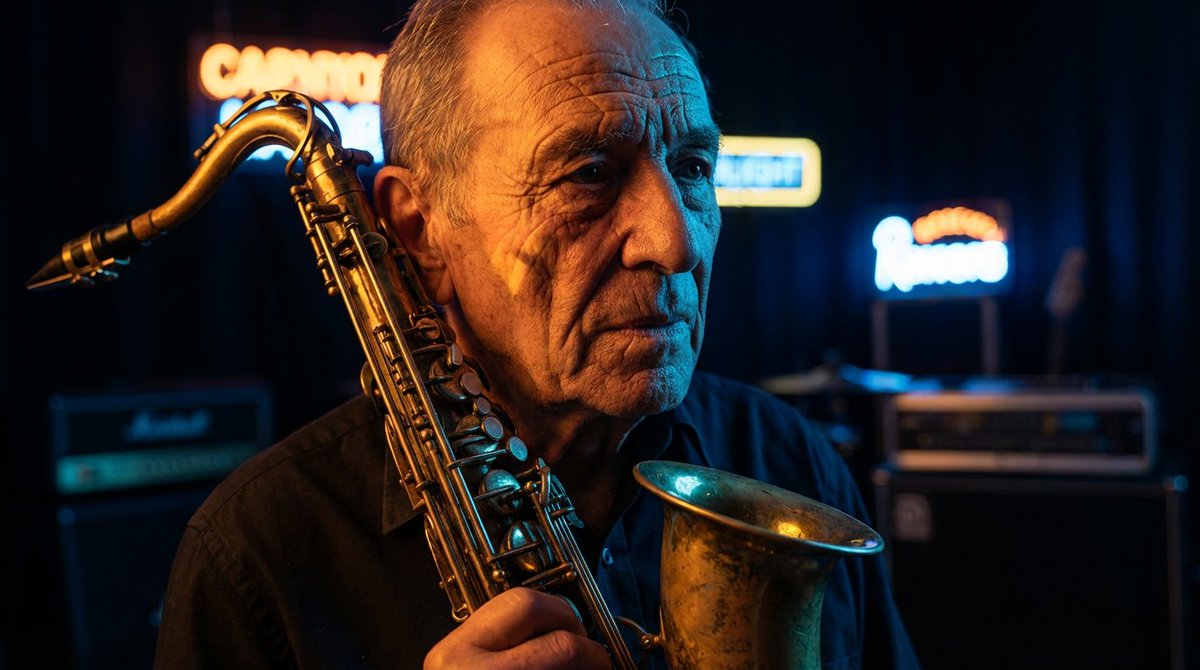
An AI text to image generator turns a written prompt into a finished picture you can download—no Photoshop skills, no stock subscriptions, no waiting on a designer. Describe the subject, style, lighting, and composition; the text to image engine renders pixels that match your words. ToolFK ships multiple models including Flux, CodeView3, and FLUX.2 Dev so you can pick speed, detail, or experimental looks depending on the job.
This free AI image generator runs in the browser: type a prompt, choose a model and aspect ratio, and save PNG or JPG in seconds. Flux models excel at photoreal scenes and clean typography; CodeView3 suits stylized illustrations; FLUX.2 Dev offers a balance for iterative creative work. When you need motion next, send the result to our image to video tool or build a full scene with the text to video generator. Stuck on wording? Nano Prompts lists tested templates you can paste and tweak.
Key Features
- Free AI image generator with Flux, CodeView3, and FLUX.2 Dev models
- Text to image from natural-language prompts
- Multiple aspect ratios for social, print, and web
- Fast PNG/JPG download after generation
- Model switcher to compare styles on the same prompt
- Pairs with ToolFK video tools for full creative pipelines
How to Generate Images from Text
- Open the text to image tool and sign in if daily limits apply.
- Write a detailed prompt covering subject, style, lighting, and composition.
- Select a model—Flux for realism, CodeView3 for illustration, FLUX.2 Dev for balanced drafts.
- Choose aspect ratio and any quality or style presets on the page.
- Click Generate and wait while the AI image generator renders your picture.
- Download the image or send it to the image to video tool for animation.
Best Use Cases
- Social posts, thumbnails, and ad creatives
- Concept art and mood boards
- Product mockups and packaging ideas
- Blog headers and presentation visuals
- Quick variations before hiring a designer
Related Tools
Frequently Asked Questions
Is this AI image generator free?
Yes. Guests have a daily generation limit; registered users receive more quota, and VIP plans add extra runs. Check the counter on the page before you start.
Which model should I choose—Flux, CodeView3, or FLUX.2 Dev?
Use Flux for photoreal output and sharp detail. CodeView3 works well for stylized or illustrative looks. FLUX.2 Dev is a solid default when you want fast iterations without sacrificing too much quality.
What makes a good text to image prompt?
Name the subject, art style, camera or lens feel, lighting, and background. Separate ideas with commas or short sentences. Avoid contradictory instructions in one prompt.
Can I use generated images commercially?
You are responsible for rights in your prompt and any trademarks or likenesses you describe. Review ToolFK terms and local laws before using images in paid campaigns.
What file formats does the generator output?
Most jobs download as PNG or JPG depending on the option you pick. Resolution follows the aspect ratio and model tier selected on the page.
How does text to image connect to video tools?
Generate a still here, then open the image to video tool with the same file to add motion. For scenes built purely from words, use text to video instead.
Last updated: July 1, 2026